


BLOG |
Blink announcements
Two-factor authentication that follows your balance, an emergency exit bundle for self-custodial wallets, places you can add to BTC Map, and more.
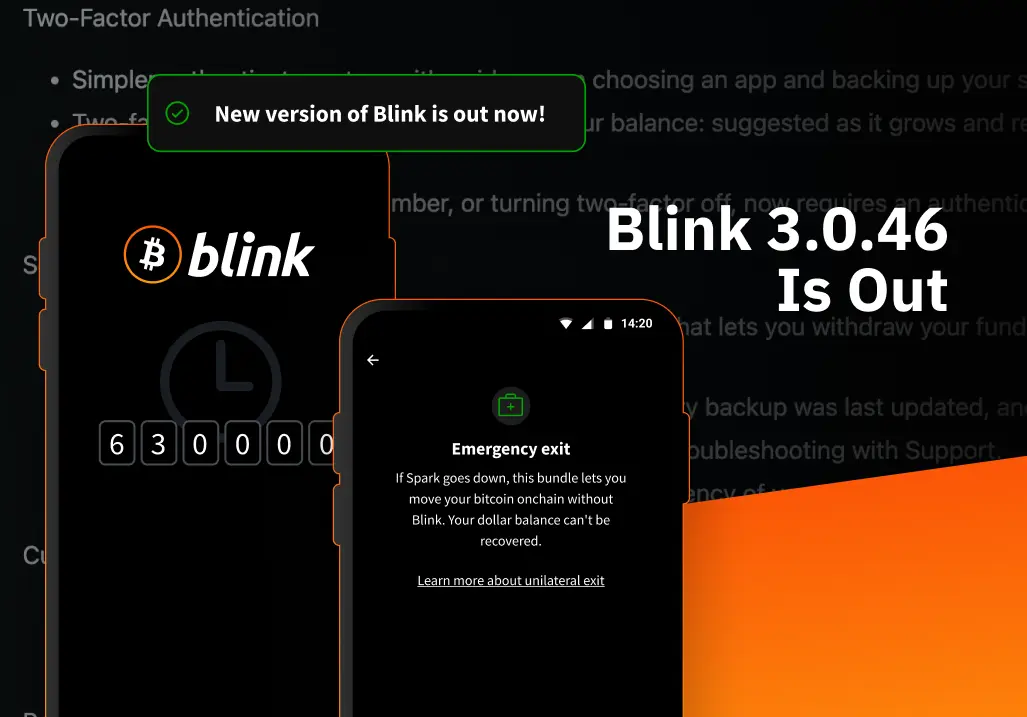


On 19 September a customer called one of our engineers to say his balance was gone. By the time we had switched the custodial service off, an attacker had emptied 24 accounts. He had also got into nine accounts that had two-factor authentication (2FA) switched on. He tried 18 times to move money out of those nine, and failed 18 times. In the post-mortem we wrote that we should have required 2FA for large balances. From Blink 3.0.46, we do.
The other big change is for self-custodial wallets: an emergency exit from Spark. When we launched self-custodial accounts in June, we told you that Spark, the network those wallets run on, is designed so that you can pull your bitcoin back onto the Bitcoin chain if its operators ever vanish, and that the app couldn’t do it yet. In July we did it by hand on mainnet, with a real wallet and 100,000 sats, and published every failure along the way. The lesson wasn’t about keys. It was that you need a fresh copy of your wallet’s exit data at the moment you need to leave, and that copy can only be made while the operators are still online. From 3.0.46 your wallet keeps that copy itself.
Those are the two big changes. The rest is a long list of smaller ones, most of them for self-custodial wallets, which have been catching up with the custodial app since June. 3.0.46 is on the App Store and Google Play, and it’s the first update to reach everyone since 24 August. If you hold a custodial account, read the 2FA section and then go and turn it on. If you hold a self-custodial wallet, read the emergency exit section and make sure you have a cloud backup. Everything else is secondary.
The emergency exit is not something you’ll ever want to use. It’s slow: about two weeks of waiting. It costs on-chain fees. It covers your Bitcoin Balance and not your Dollar Balance. And for now you run it with our open-source tooling, not from a button in the app.
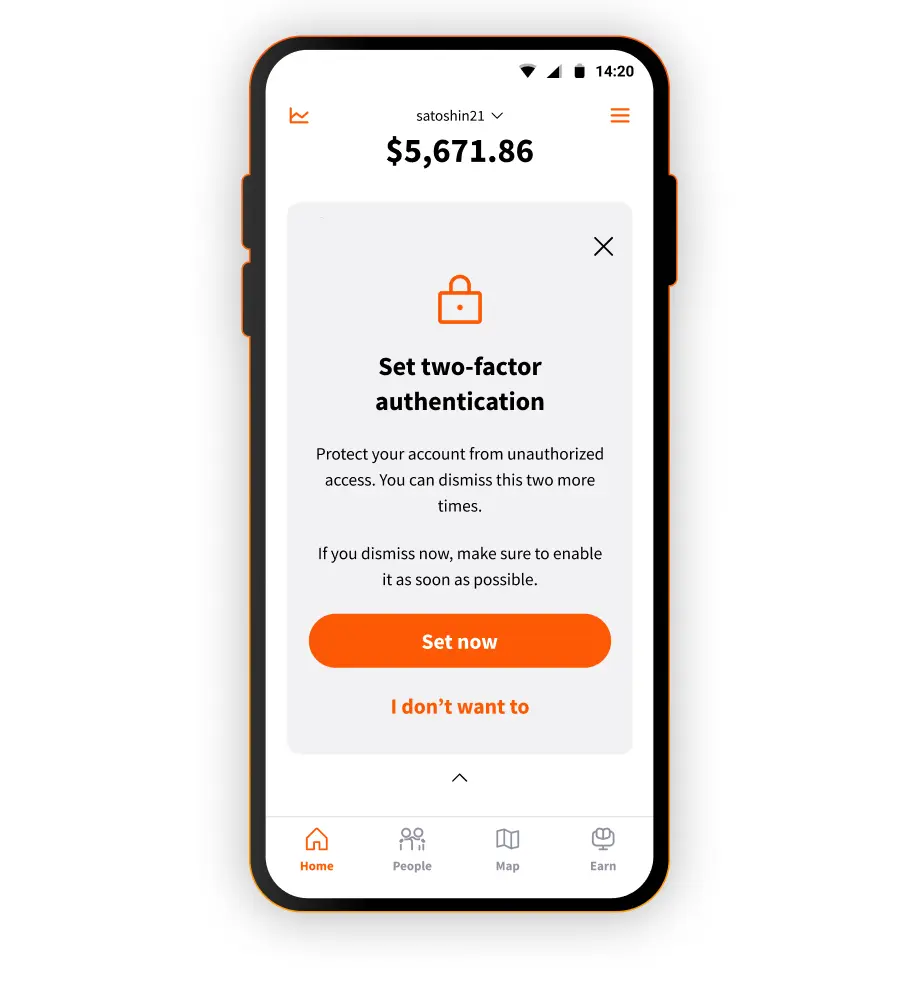
In a custodial account, we hold the funds and you log in with a phone number or an email address. Anyone who takes over that phone number or that inbox can get your login code. With 2FA on, a login code alone can’t move money; it also takes a 6-digit code from an authenticator app on your phone. That’s the gate the attacker hit 18 times. The whole story, and every setup step with pictures, is in Two-factor authentication on Blink: what it is and how to set it up. A quick overview of how it works in the app:
Guided setup. Tap Set on the 2FA card on Home, or go to Settings → Security and Privacy → Two-factor authentication and tap Set authenticator. If you’ve never used an authenticator app, Blink suggests three free ones and opens the store for you; if you have one, tap I have an app. Then you copy a setup key into the authenticator, type the code it shows, and save the key somewhere other than this phone. Please don’t skip that last step. The key is what gets your codes back if you lose the phone, and we don’t keep a copy to show you later.
Changing your login requires an authenticator code. Adding an email or phone number, and turning 2FA off, now ask for the 6-digit code from your authenticator app first. Once an account has held 5,000,000 sats or $5,000, 2FA stays on.
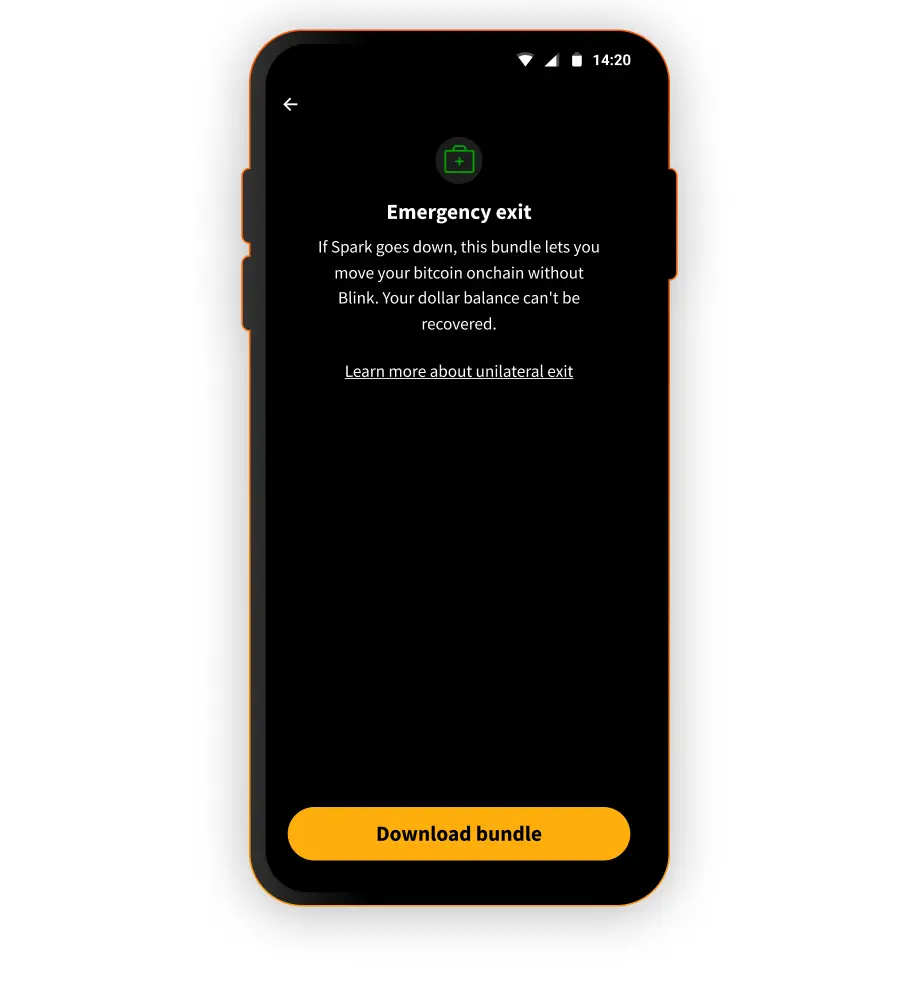
In a self-custodial wallet, you hold the keys: the 12 words you wrote down when you set it up. We can’t touch the funds. The full post, with the July numbers, is Emergency exit on Blink: what it is and how to keep it ready. A quick overview of how it works in the app:
The emergency bundle. Spark holds your bitcoin off the main chain, and a group of operators co-signs every payment you make. They can’t spend your money: every payment also needs your key. But if they all went offline, your 12 words alone would not be enough to get your bitcoin back. For that you need a snapshot of where it sits, made while the operators were still online. That snapshot is the emergency bundle. From 3.0.46 the app creates it after your first transaction and refreshes it after every payment. You don’t have to do anything.
It’s saved with your cloud backup. If you back up your 12 words to Google Drive or Apple iCloud, the bundle is saved beside them, encrypted. When the cloud copy is more than a week behind the one on your phone, Home shows Update your cloud backup with a Back up again button. If you don’t use a cloud backup, download the bundle yourself from Settings → Security and Privacy → Emergency exit. Blink never receives it either way.
What it’s for. If Spark is ever unreachable, an exit needs the bundle and your 12 words. You run it yourself with our open-source tooling; it isn’t inside the app yet. It covers your Bitcoin Balance only.
Self-custodial wallets launched in June without some things custodial accounts had. 3.0.46 fills in some of them.
Pay codes. A pay code is the printed QR code a Blink merchant puts on the counter. Until now a self-custodial wallet couldn’t pay one. Now it pays over Lightning like any other wallet.
Unseen payments and contact history. The badge for payments you haven’t looked at yet, and the list of payments on a contact’s page, now work for self-custodial wallets too.
Invoices with fractions of a satoshi. Some Lightning invoices ask for an amount that isn’t a whole satoshi. Self-custodial wallets used to refuse them. Now they pay them.
A clearer error. When a merchant’s Lightning service is down, the app used to say “invalid QR code”, which sent people hunting for a problem with the code. Now it says the service is unavailable, which is what’s happening.
A log for support. If something goes wrong, Settings → Advanced → Download logs exports a file our support team can read. It holds the payment history and wallet identifiers of every self-custodial wallet on the phone, and never your 12 words. Share it with support only.
Your region’s currency from the start. A new wallet now shows amounts in the currency of the region your phone is set to, instead of starting in dollars. Change it under Settings → Display currency.
On the receive screen, open the Bitcoin page and tap New for a new bitcoin address. Addresses you’ve already given out keep working.
BTC Map is the open map of places that take bitcoin, and it’s built into Blink.
Now you can add a place from inside Blink. If your account is verified (Level 2), tap Add to map on the map, move the map to put the pin on the place, fill in Name and Category, and send it. Blink confirms with Place sent to BTC Map. BTC Map’s community reviews new places before they show up, so give it a little time.
Announcements that stay. When we need you to see something, such as a service problem, the notice on Home now stays until we clear it. Other notices close as before.
Screenshots are blocked on more screens. The screens showing your 12 words and your API keys already refused screenshots. The cloud backup and restore screens, the screen where you type your 12 words, and the 2FA setup key screen now do too.
The app lock holds. The PIN or fingerprint lock stays in place after you’re logged out, and if your phone can’t check your face or fingerprint, the app asks for your PIN instead of opening. Wrong PINs make you wait longer each time, up to an hour.
Usage data from self-custodial wallets. Self-custodial wallets come in two modes. Enhanced shares your region with us so more features work; Incognito shares nothing. In Enhanced mode the wallet now also sends usage analytics and crash reports under a random id made on your phone, so we can see what breaks. In Incognito mode it sends nothing, not even a crash report. We’d love the crash reports, but you chose Incognito for a reason. Custodial accounts are unchanged.
Notifications at the top. Short notices appear in a row at the top of Home instead of over the buttons at the bottom.
Landscape on tablets. On a tablet, the app now turns with the screen. Until now it stayed upright however you held the tablet.
That’s the whole release. The full list, including fixes too small for this post, is on the GitHub release page. If you take one action from this post: turn on 2FA if you’re custodial, and back up to the cloud if you’re self-custodial.
Get the update on the App Store or Google Play. Questions? Write to support@blink.sv.
Start receiving and sending bitcoin now


