WooCommerce x Blink

Add Bitcoin Lightning to your WooCommerce checkout, right next to PayPal, Stripe, and bank transfer. Customers pay a Lightning invoice, the order settles automatically, and the funds land in your Blink account. No server, no node.

Download Plugin

Lightning for the biggest shop system

Background

More than half of all online shops run on WooCommerce, yet there was no simple way to accept Bitcoin Lightning at checkout. The BTCPay Server plugin is excellent, but it asks you to run a server or find someone who does. Most shop owners never get that far. The Blink plugin is the direct route: install, connect, and start accepting Lightning.
One more option at checkout

Blink Plugin

The plugin adds Lightning as a payment method inside your existing checkout, next to the options your customers already know. Your shop stays exactly as it is. Customers who want to pay with Bitcoin can; everyone else checks out as usual. You lose nothing and gain a payment rail with no chargebacks and fees your card processor cannot match.
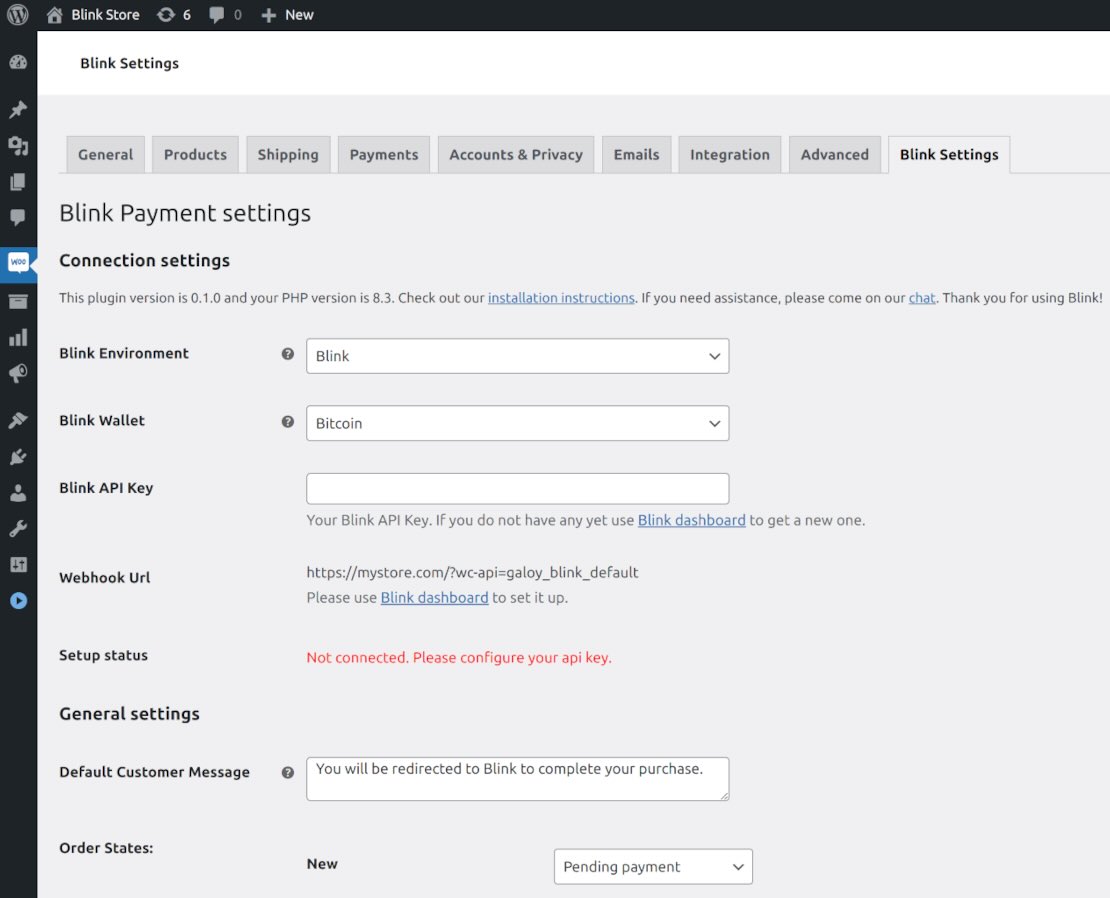
From cart to settled

How it works

Your customer fills their cart and picks the Blink option at checkout. The plugin generates a Lightning invoice for the total. They pay with any Lightning wallet, the payment confirms in seconds, and WooCommerce marks the order settled and ready for processing on its own. No refreshing a wallet screen, no matching payments to orders by hand. You just see orders ready to dispatch.
Your custody, your choice

Custodial or non-custodial

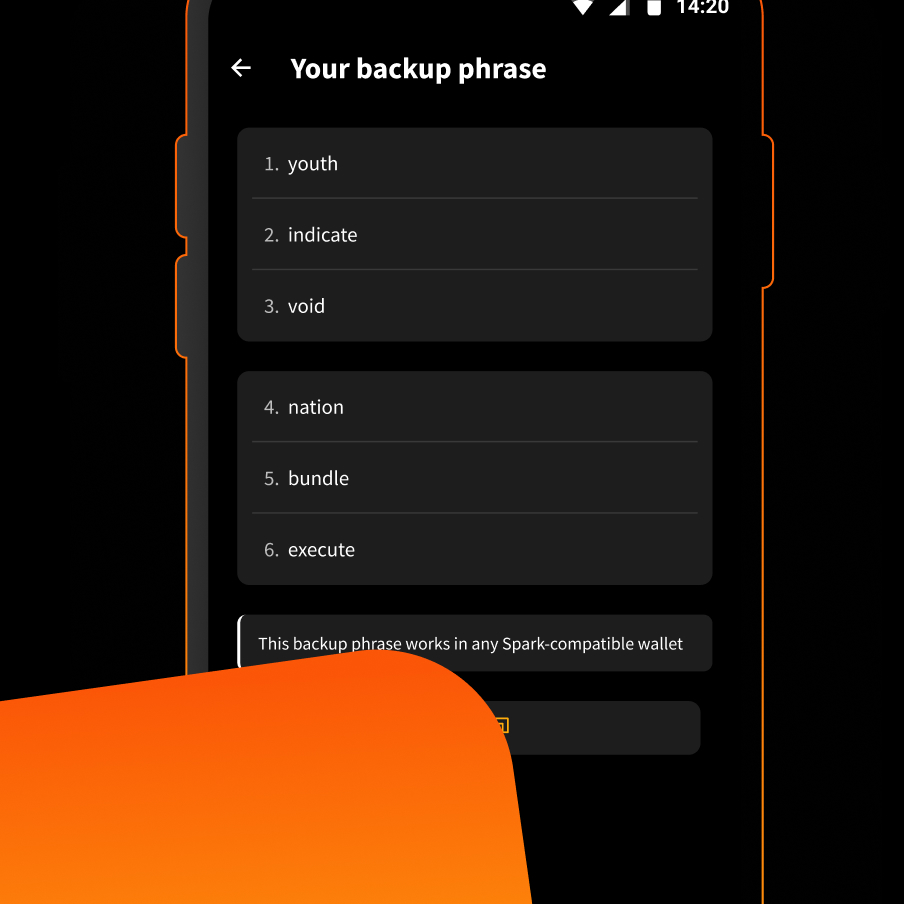
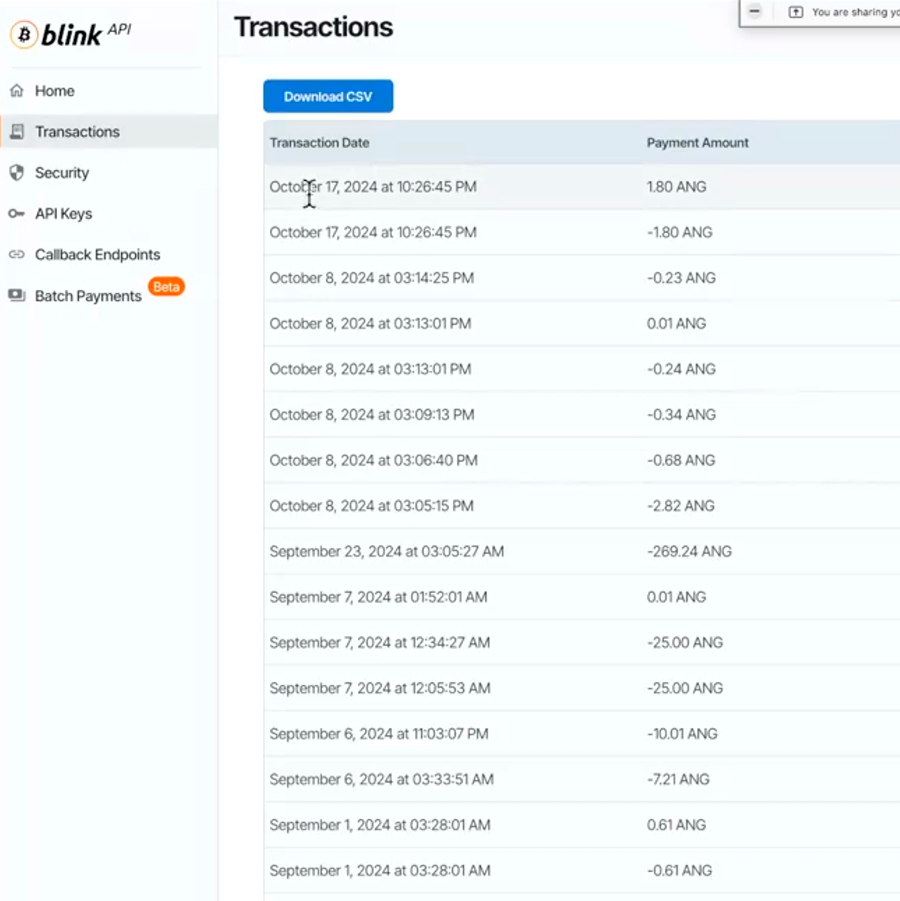
Connect a custodial Blink account with a receive API key, or select non-custodial and enter your Blink Lightning address. Either way, payments flow straight into your account. And if volatility worries you, set your Blink default to the Dollar Balance so incoming payments hold their USD value from the moment they arrive.
Live in five minutes

How-to

  1. Install: In your WordPress admin, search for Blink in the plugin directory and click install. WooCommerce must already be set up.
  2. Configure: Open the plugin settings. Custodial account: enter your receive API key. Non-custodial: select it from the dropdown and enter your Blink Lightning address.
  3. Save: That is it. Lightning now appears as a payment option in your checkout.


See tutorial

Checkmark list

Benefits

Instant settlement: Payments confirm in seconds over Lightning
No chargebacks: Final settlement, every time
Reduce costs: Save 2-5%  vs. credit cards
Automated orders: Paid orders are marked settled automatically
No server required: No BTCPay instance, no node, no maintenance
Your choice of custody: Custodial API key or non-custodial Lightning address

Download Blink

Start receiving and sending bitcoin now

Community