


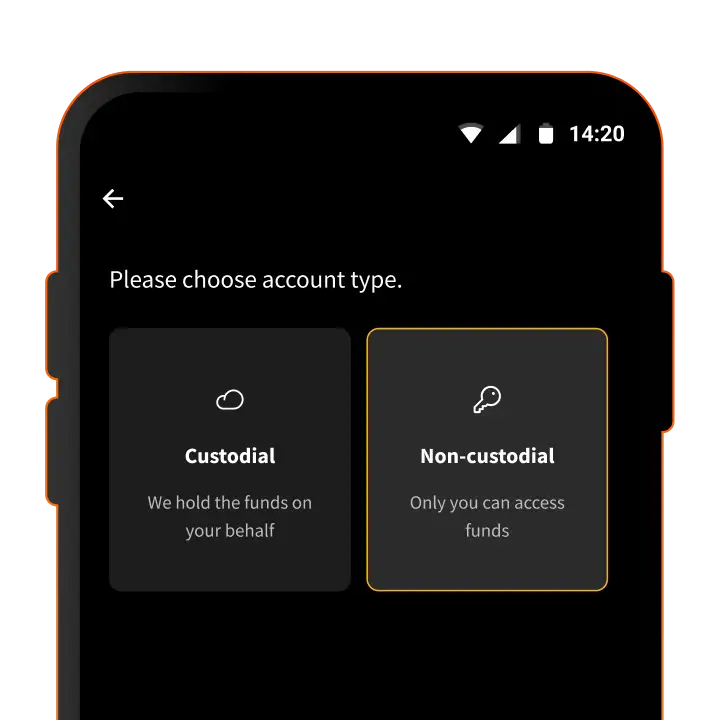
Blink now offers non-custodial accounts, and it is one of the most important updates the wallet has ever had. For the first time, you can hold your own keys directly inside Blink, with the same simple experience you already know.
I have set it up myself and walked others through it, so in this guide I will show you exactly how to do it. Whether you are brand new to Blink or you have been using the custodial wallet for a while, you will find your path below.
Let's get into it.

With a custodial account, Blink holds your Bitcoin on your behalf. This is the model Blink has offered since the Bitcoin Beach days, and it remains a great option, especially for newcomers, making Bitcoin simple and easy to use from day one.
With a non-custodial account, you hold your own keys. Only you can access your funds, and no single operator, or group of operators, can touch them without your involvement. No one can freeze your funds and no one can stop you from making a payment you want to make. That is the whole point: your keys, your Bitcoin. This idea is core to Bitcoin itself, which is why the phrase "not your keys, not your coins" has stuck around. The trade-off is that backing up your wallet is now your responsibility, and this guide makes sure you get that part right.
Blink built this now because two things came together: the technology finally matured, with protocols like Spark making self-custody simple, and regulations around custodial Bitcoin services tightened worldwide. Rather than collect licenses jurisdiction by jurisdiction or drop users in certain countries, Blink chose a different path: less custody, not more licenses. If you want the full story behind the decision and the honest trade-offs involved, the official announcement is worth a read.

If you are downloading Blink for the first time, here is the full process.
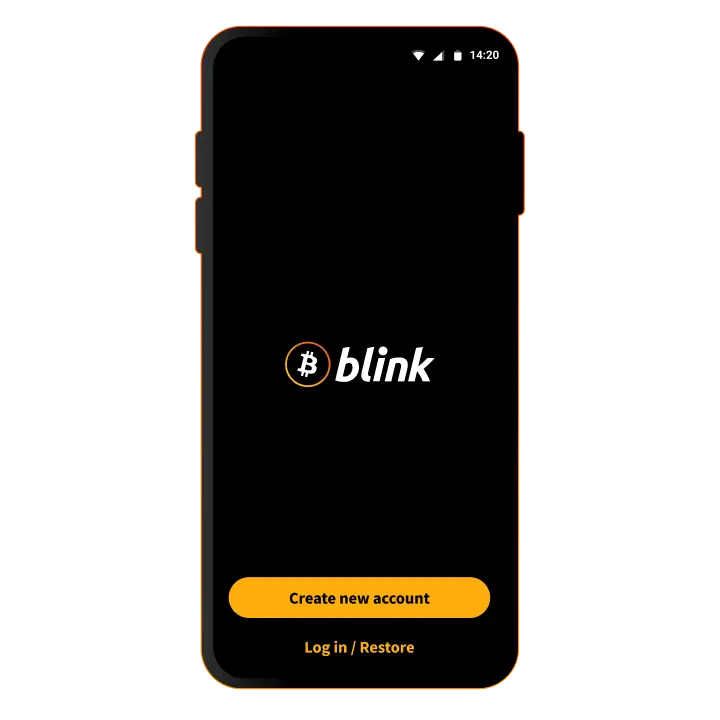
Get Blink from the App Store, Google Play, our Github or Huawei AppGallery.
Open the app and tap Create new account.
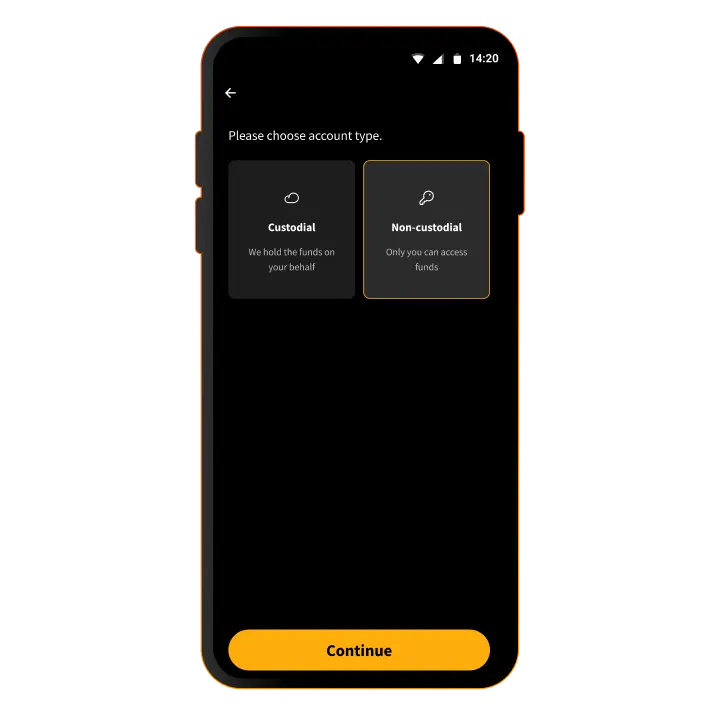
You will see a screen asking you to choose your preferred type of Blink. Two options appear:
Tap Non-custodial. An orange outline confirms your choice. Then tap Continue.
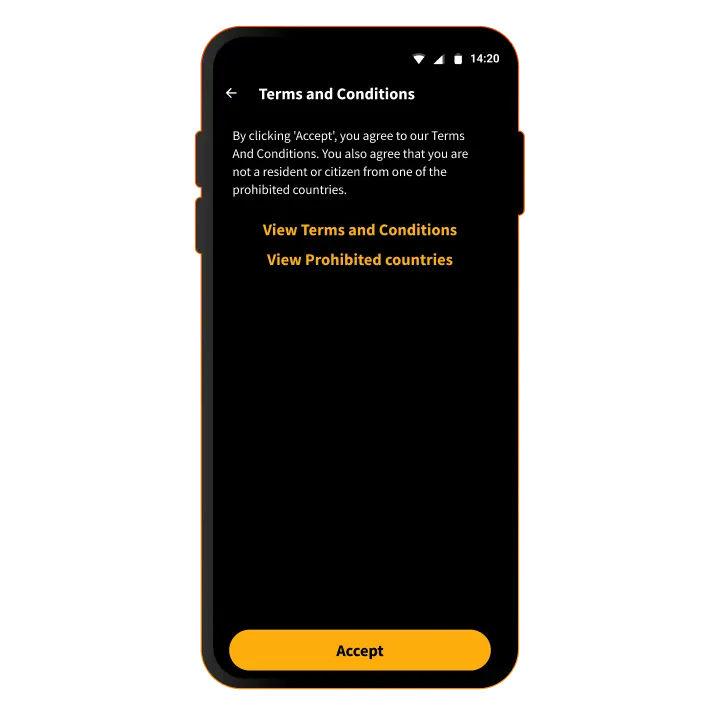
The Terms and Conditions screen confirms you agree to the terms and that you are not a resident of a prohibited country. You can tap through to read the full terms or the prohibited countries list.
When you are ready, tap Accept.
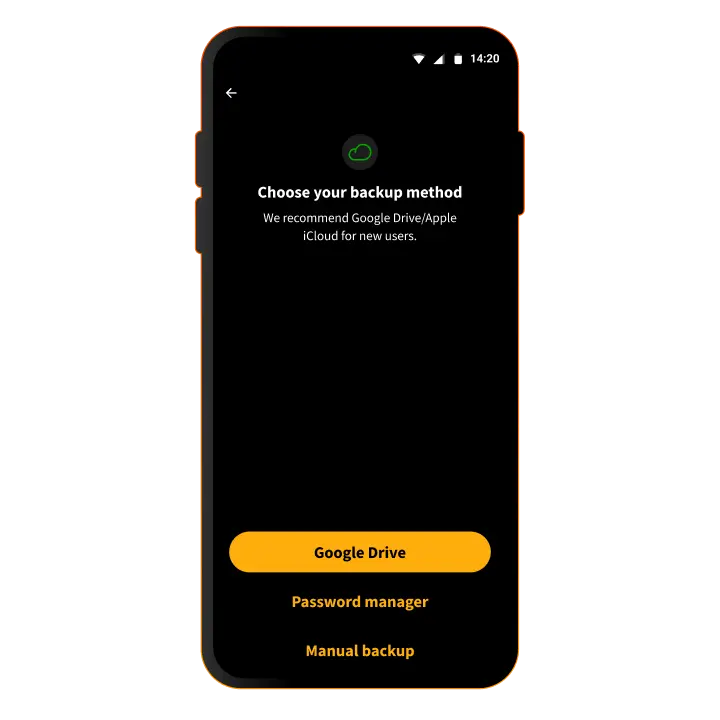
This is the most important screen in the whole process, so slow down here.
Pick whichever one you will actually keep safe. As Blink puts it, a cloud backup you actually do is infinitely better than a steel-plate backup you never get around to. If you are new, Google Drive or iCloud is a solid choice.
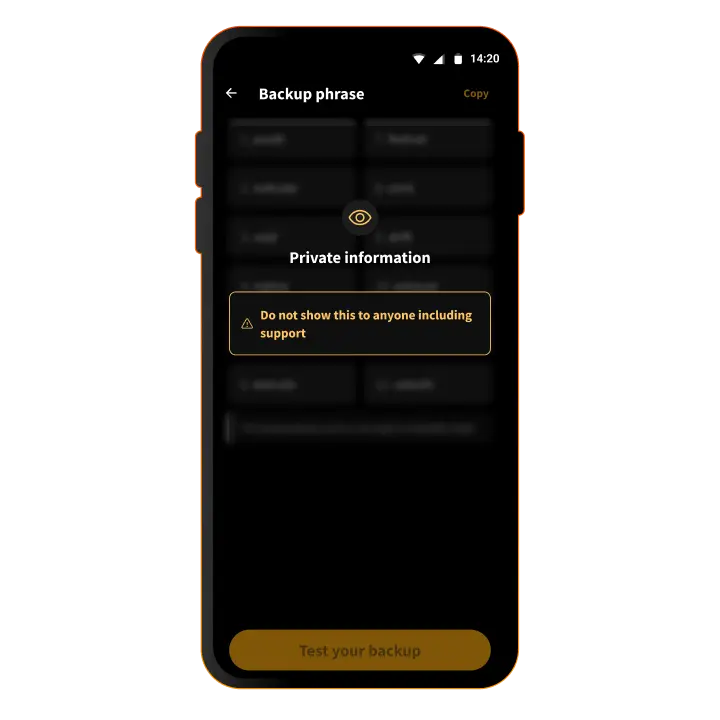
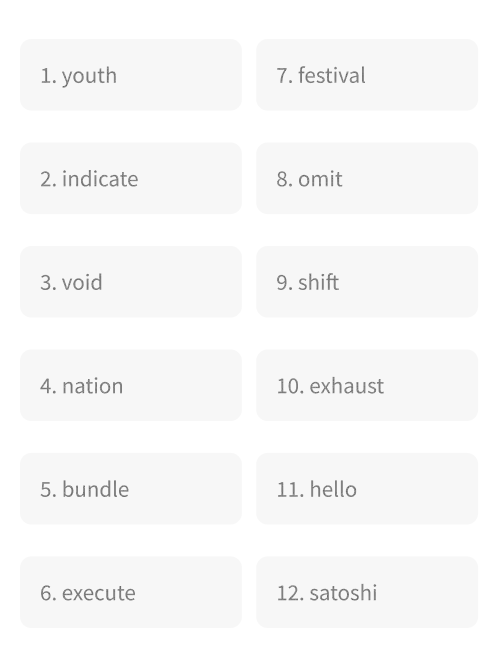
Follow the prompts for the method you chose. Whichever option you pick, Blink is backing up your recovery phrase, a list of twelve words that is the master key to your wallet.
If you go with Manual backup, the standard Bitcoin self-custody rules apply: write the words down carefully and in order, store them somewhere safe and offline, never screenshot them, and never share them with anyone. Anyone who has your recovery phrase has full access to your funds.
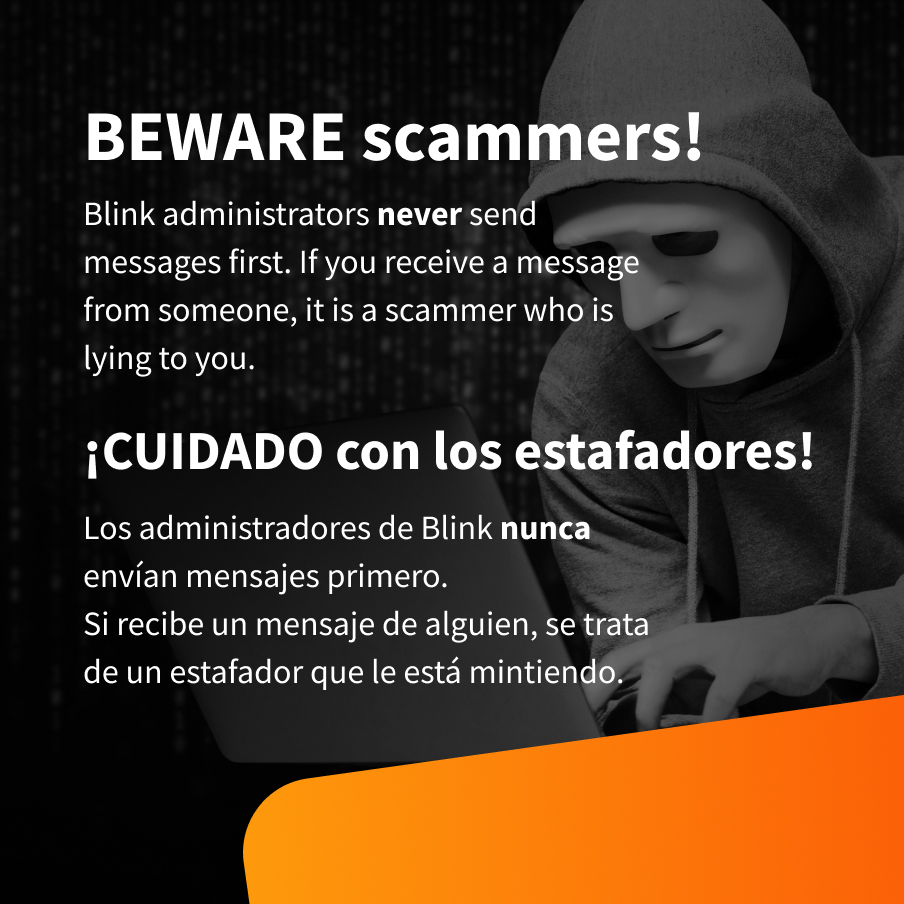
One rule worth burning into memory: Blink will never ask you for your recovery phrase. No real support agent, email, chat, or website will ever need it. If anyone claiming to be Blink support asks for your twelve words, it is a scam, every time, no exceptions.
That is it. Your non-custodial Blink account is live.

Already using the custodial wallet? You do not lose anything. For most of the world, going non-custodial starts as a new account option, and your current custodial Blink Wallet keeps working exactly as it does today. If you already have a custodial account, you can keep it.

To get started, go to Settings → Switch Account → Add New Account, → Create New

Pick Non-custodial, then go to Settings, choose your backup method and complete the backup exactly as described above. Do not skip this or you might lose your bitcoin.

Here is an important detail. A migration path that lets you move your existing custodial funds into a non-custodial account is planned for shortly after launch. When it is ready, you will be able to migrate at your own pace. For most users it will not be required.
In some countries, because of regulatory developments, Blink plans to ask users to migrate from custodial to non-custodial in the near future. But that comes only once the non-custodial experience is fully solid. Until then, you can run a non-custodial account alongside your custodial one and get comfortable with it.
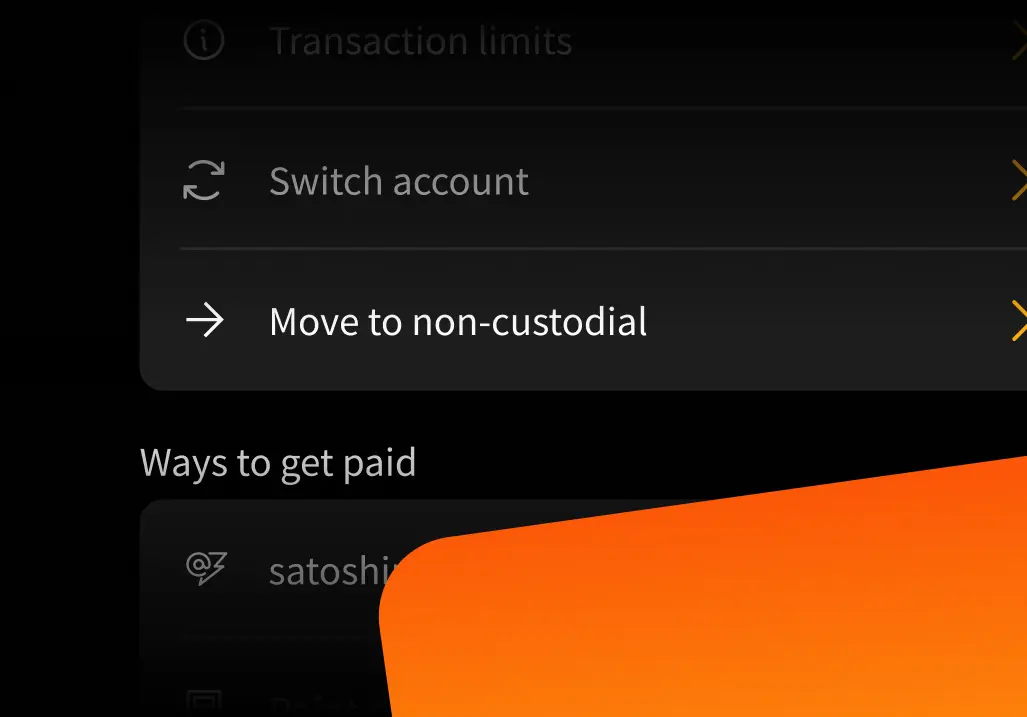
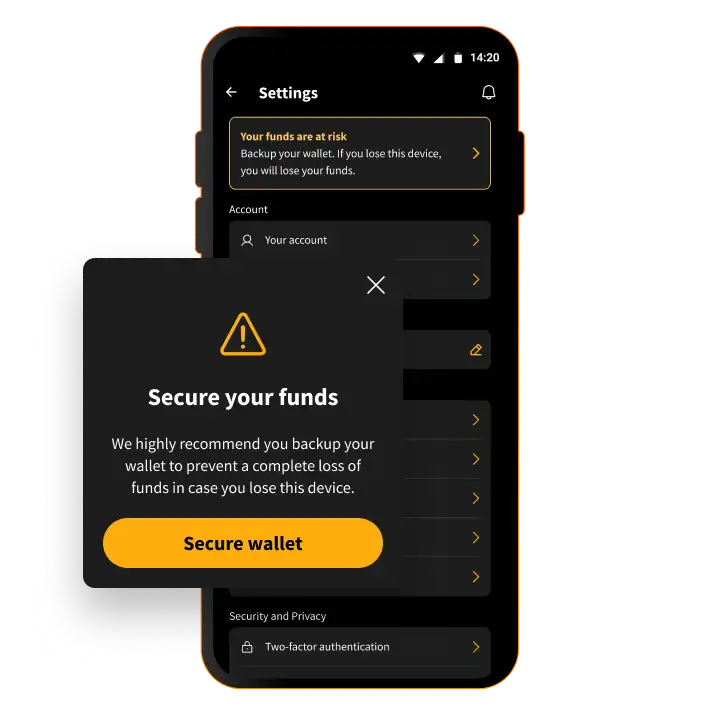

Once your non-custodial account is set up, you may see a banner in Settings that reads "Your funds are at risk. Backup your wallet. If you lose this device, you will lose your funds."
Do not panic, and do not ignore it. This banner is Blink being honest with you. It appears until your backup is complete, and it is there for a good reason. With self-custody, if you lose your device and you have not backed up, no one can recover your funds for you. There is no "forgot password" button and no support ticket that will get your funds back, which is exactly how self-custody works across every Bitcoin wallet.

Here is the good news. Once you are set up, Blink works almost exactly the way you already know. You keep the same username@blink.sv Lightning address, and you still receive, send, and transfer as usual. Most things stayed the same. Here is what is actually different.
A non-custodial Dollar Balance, where available in your region. In supported regions, you get a Dollar Balance where you can keep USD alongside your Bitcoin. It is non-custodial like the rest of your wallet, and you can transfer between your Bitcoin Balance and Dollar Balance in a tap. Availability varies by region, so if you do not see it, it may not be enabled where you are yet.
You are never locked in. With your recovery phrase, you can access your funds in other Spark-compatible wallets. If Blink disappeared tomorrow, you could open another Spark-compatible wallet and keep transacting as if nothing happened. You are tied to your Bitcoin, not to Blink.
The experience is the same. What changed is who holds the keys.



If you ever get a new device, restoring is straightforward. On the welcome screen, tap Log in / Restore, then choose the same backup method you used to set up: Google Drive, iCloud, Password manager, or Manual backup. Follow the prompts, and your wallet and funds come right back.
This is exactly why the backup step matters so much. A good habit borrowed from experienced Bitcoiners is to test your backup with a small amount first before moving significant funds, so you know recovery works before you rely on it.
Some features are still on their way or region-limited. Non-custodial accounts are new, so a few features from the custodial experience are not available yet or depend on where you are:
Blink shipped non-custodial as soon as it was ready rather than make you wait, and more of these will come as it matures.
Blink cannot recover your keys. This is worth repeating. In non-custodial mode, if you lose your recovery phrase and your device, your funds are gone. That is not a flaw, it is the nature of true ownership. Back up properly and you have nothing to worry about.
An exit path exists at the protocol level. Your funds live on the Spark protocol, which is designed so you can move your Bitcoin back to the main Bitcoin chain using pre-signed transactions if Spark's operators ever go sideways. Note that this exit capability is not yet exposed in the current version of the Blink app, but it is supported at the protocol level.
No. For most users it is optional, and your existing custodial account keeps working exactly as before. You can switch whenever you feel ready. In some countries, due to regulatory developments, Blink plans to ask users to migrate in the near future, but only once the non-custodial experience is fully solid.
Because only you hold the keys, Blink cannot recover a lost phrase or reset your access. There is no "forgot password" button. Back it up carefully using one of the built-in options and store it somewhere safe.
No. Your Lightning address (username@blink.sv) stays the same, so the people who pay you notice no difference.
In supported regions, yes. You can hold a non-custodial Dollar Balance and transfer between it and your Bitcoin Balance in a tap, and it is non-custodial like the rest of your wallet. Availability varies by region: in Hong Kong it is not currently available for non-custodial accounts, and in the EU it is available but the Transfer button is hidden.
Not yet. Because non-custodial accounts are new, some features are not available or are region-limited. Point of Sale and Circles may arrive later as the account matures. Quiz rewards are currently custodial-only. Dollar Balance is available in supported regions only. More features will come as non-custodial matures.
Spark is the protocol your non-custodial funds live on. Operators hold key shares, but no single operator, and no group of operators, can touch your funds without your involvement. It is trust-minimized rather than fully trustless, and you retain an exit path to the main Bitcoin chain. For the full reasoning behind why Blink chose Spark, see the official announcement.

Setting up a non-custodial account on Blink takes a couple of minutes, and the only step you truly cannot skip is the backup. Get that right and you have something genuinely powerful: full ownership of your Bitcoin, with the same simple experience Blink has always offered.
Non-custodial accounts are a big step, and Blink wants to hear how the experience feels for you. If something works brilliantly or trips you up, say so. Share your feedback, good or bad, by tweeting at @blinkbtc or joining the conversation on Telegram. And if you want the full story behind the launch, give the official announcement a read.
Please check out our FAQ page where we deep dive into greater detail. If you have any other questions, reach out to our team
Start receiving and sending bitcoin now


